Ads Launch Assistant is part of the Advertising Toolkit. Set up, publish, and monitor Google and Meta ads from a single dashboard, with AI support at each stage — generating headlines, setting budgets, and reviewing performance. If you're an SMB owner, in-house marketer, or agency, you can launch campaigns without switching between ad platforms.
Setting up a campaign takes 4 steps.
Step 1: Connect your accounts
- Go to Advertising > Ads Launch Assistant
- Click Create new campaign

In the connection prompt, authorize access to your Google Ads account, your Meta Ads account, or both.

Once connected, your accounts appear in the dropdown menus for campaign setup.
If you don’t already have an account, click create account.

New Google Ads users may also be eligible for up to $500 in ad credit when creating their first campaign.
To connect more than 1 Google or Meta account, open the folder selector at the top and click +Create folder for each additional account.

The new folder is listed on the Ads Launch Assistant landing page.
Click Set up campaign to connect your Google Ads and/or Meta Ads accounts. Then, follow the same steps to connect the secondary account.

You can link as many accounts as you have folders, with each folder dedicated to a different account for easier management.
You can also disconnect a Google Ads account from a folder, as long as that folder does not contain any Google campaigns.

Learn more about connecting accounts here.
Step 2: Build and launch your campaign
Once your accounts are connected, create your first campaign by entering your details and business URL.
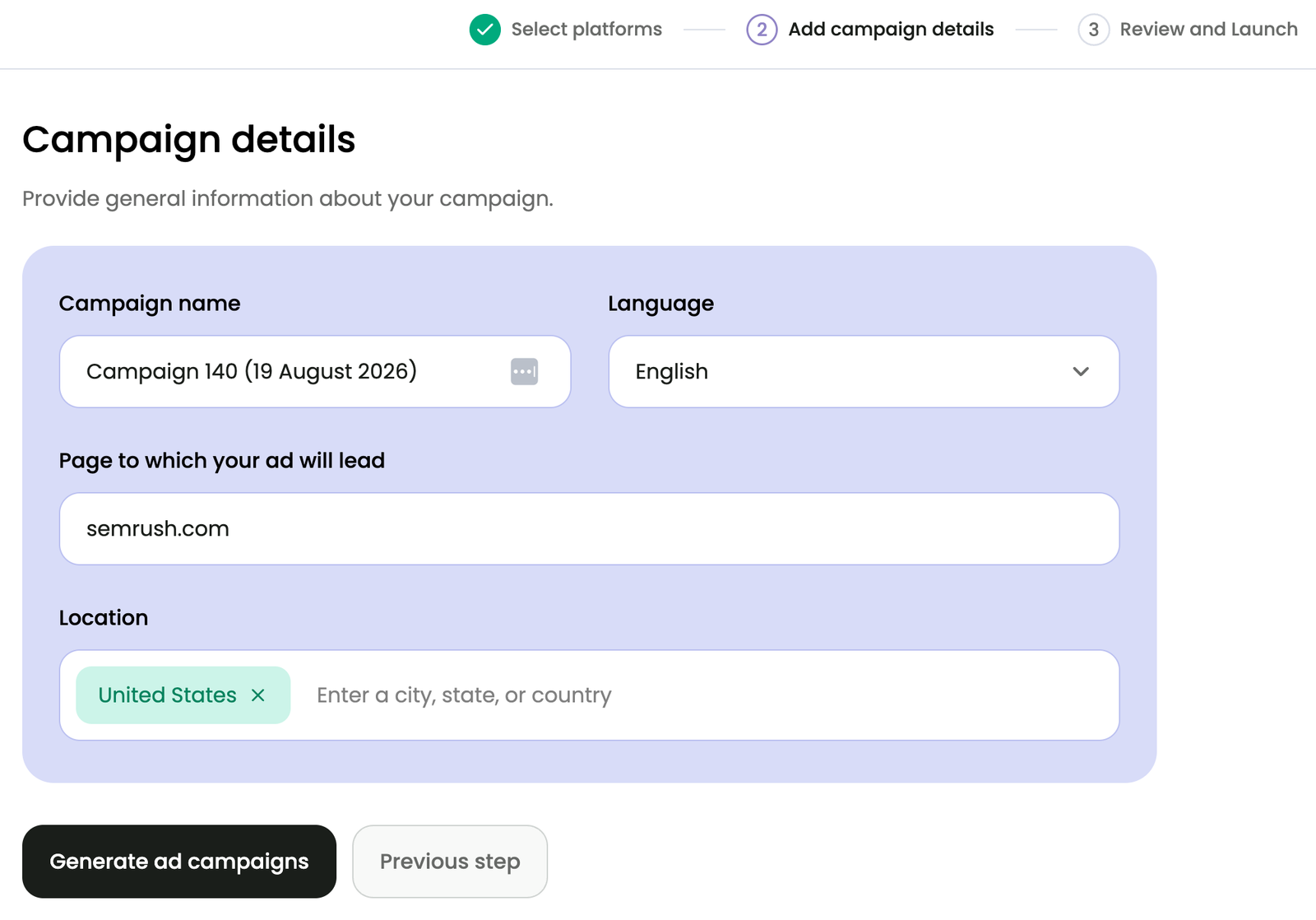
Based on this information, you can choose from:
- AI-generated ad copy (headlines, descriptions, sitelinks, callouts), images, videos, mockups, and templates
- Suggested targeting and keyword lists, including negative keywords — the terms you don't want your ads to appear for
- Google Ads: Suggested keywords, headlines, and descriptions based on your website domain

- Meta Ads: Suggested creatives (images and videos) relevant to your business, based on the URL you provide

Customize campaign type, content, location, language, and budget before previewing and launching your campaign directly from the platform.
To publish your campaign:
- Review the preview
- Make any final edits
- Click Launch campaign
Get a more detailed walkthrough in the Campaign Setup Manual.
Step 3: Optimize your campaigns
After your campaign goes live, Ads Launch Assistant analyzes how your ads are performing and generates AI recommendations specific to your campaign.
Click Show all to see every recommendation.
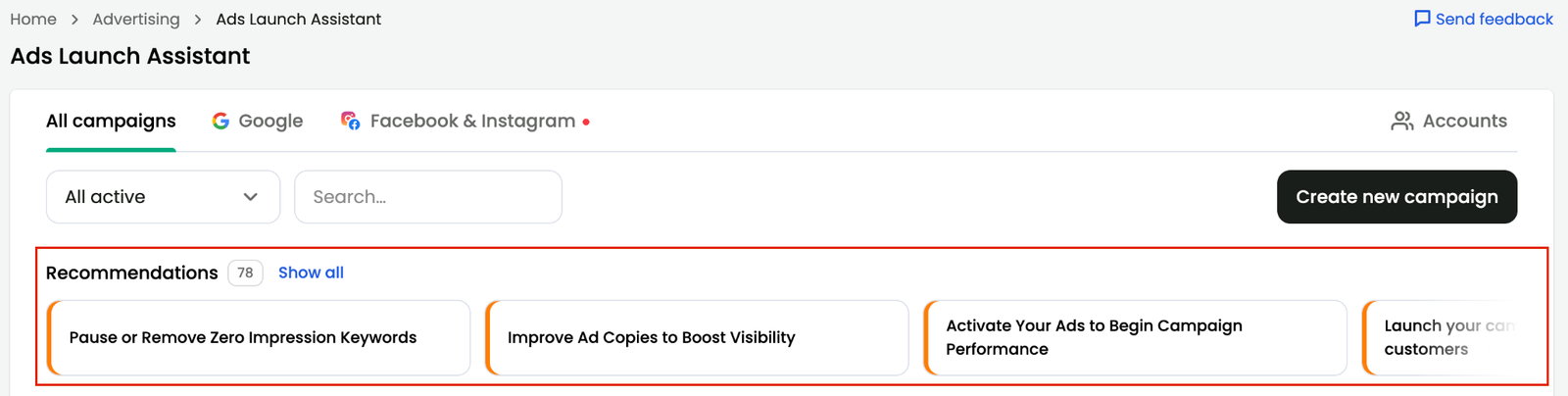
From the recommendations list, you can:
- See recommendations directly in your dashboard
- Filter by category, campaign, and other criteria to focus on what's relevant
- Apply changes in bulk with a single click
- Hide recommendations that don't apply, which moves them to the Hidden list. Apply or unhide them at any time.
Recommendations cover keywords, ad copy, and audience targeting. You might see a suggestion to update keywords in response to poor ad performance, or to add negative keywords and reduce wasted ad spend.
The reporting dashboard still tracks metrics like spend, impressions, click-through rate (CTR), and conversions, and the recommendations tell you what to act on next.
Step 4: Monitor campaign performance
After your campaign goes live, the reporting dashboard tracks your ad performance across platforms in one place, including:
- Spend and impressions
- CTR
- Conversions and cost per conversion
Update your campaign settings at any time by clicking the pencil icon.

From here, you can:
- Adjust campaign details, such as network settings or end date
- Edit your audience, exclude devices, or change the language
- Add a tracking template
- Update ad groups, bid strategy, or budget
- Add conversion actions, such as Purchase, Checkout, or Subscribe
- For Meta: Edit audience, visuals, placements, ad text, and CTA
Compare results over time and identify which ads, platforms, or audiences perform best.
Read more in the Campaign Reporting Manual.
Related tools
Ads Launch Assistant covers campaign launch, performance tracking, and optimization. To research competitors before you build a campaign, use:
Frequently asked questions
The steps for disconnecting an account depend on the platform.
For Google Ads: Contact Customer Support.
For Meta:
- Log in to your Meta Business Manager account
- Open the Business Accounts dropdown and select Settings
- Go to Integrations > Connected Apps
- Find the Semrush or Ads Launch Assistant app, click Remove App, and confirm the removal
After disconnecting, wait a few minutes, then refresh the Ads Launch Assistant page and connect the correct account.
When your campaign is live but shows no results, start with the admin panel of your advertising platform — your Google Ads account or Meta Business Manager — and look for notifications or issues affecting your campaign or account.
For Google Ads, also check your campaign budget and status. A low budget limits how often your ads appear. An Eligible (limited) or Limited by budget status means the campaign is active, but budget constraints prevent your ads from serving as often as they could.
If you find no issues with your campaign, account, or budget, contact Customer Support.
Your ad is live — impressions mean it has been displayed, even though you can't find it yourself. Several factors explain the difference:
- Audience targeting: Your ads appear to people who match your targeting criteria, such as demographics, interests, or behaviors
- Location settings: Your ads appear based on the locations you target. Outside that area, you won't see them.
- Ad delivery: Ads don't appear every time an eligible person searches or browses. Budget, bids, competition, and platform optimization all affect when your ad appears.
- Personalization: On Google, your own previous searches and activity affect which ads you see
To confirm your ad is running:
- Check your campaign status and metrics, such as impressions and clicks, in your dashboard
- For Google Ads, use the Ad Preview and Diagnosis tool to check whether your Search ad appears, without affecting your ad statistics
- Check your audience, location, budget, and other campaign settings against what you expect
Google suspensions are resolved through Google, since Ads Launch Assistant doesn't determine or control them. Google applies its own policies and review processes to ads and accounts, whatever tool created the campaign.
To find out why your account, campaign, or ad was suspended or disapproved, log in to your Google Ads account and review the status and any notifications from Google. Google may also email you an explanation and the steps to resolve it. Depending on the reason, Google may ask you to update your ad or account information, complete verification, or submit an appeal.